AI connector
Connect an AI app to your Syncupp workspace. It can look at your boards, tasks, meetings, and leave, and — if you allow it — create and update tasks, delete one task, create a board, invite a teammate, and decide approvals and leave. It acts as you, in one workspace, and it cannot see work you cannot see.
Every app uses the same server URL:
https://api.syncupp.com/api/v1/mcpThere are two ways in. Sign in when the app opens Syncupp. Use an API key when the app asks for a token.
The consent page names the app that opened it. Claude shows Claude wants to access your Syncupp workspace. Cursor, ChatGPT, Codex, or Devin show their own name.
Sign in from the app
You do not create an API key. The app registers itself and Syncupp asks you to allow it.
| App | Where to add Syncupp |
|---|---|
 Claude on the web | Settings → Connectors → Add custom connector. Name it Syncupp and paste the server URL. |
 Cursor | Add a remote MCP server (Streamable HTTP) with the server URL. Cursor signs you in. |
 ChatGPT desktop, Codex CLI, and the Codex IDE extension | Settings → MCP servers → Add server → Streamable HTTP, paste the server URL, then choose Authenticate. |
 Devin Desktop | Add a remote HTTP MCP server with the server URL, then sign in. |
ChatGPT in the browser does not take this URL. Use the ChatGPT desktop app or Codex.
After the app opens Syncupp:
- If you are not signed in, choose Sign in, log in, and you come back to the same request.
- Choose the workspace.
- Choose Read only, or Read & write if you want the app to change tasks, boards, invites, approvals, or leave.
- Choose Allow. You are sent back to that app.
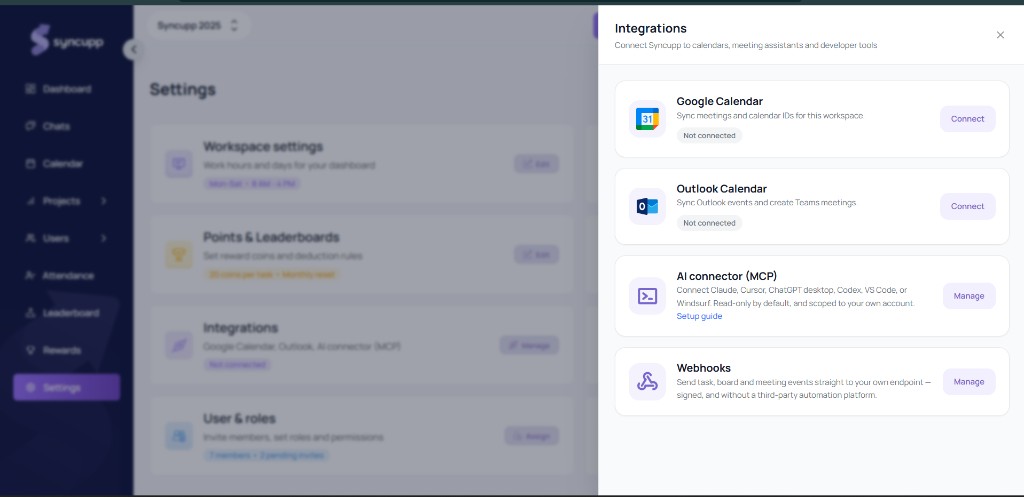
To disconnect it later, open Settings → Integrations → AI connector (MCP) in Syncupp, find the app under Connected apps, and choose Revoke. The list shows the name of the app that connected.
A workspace with a pending payment stays read-only, even if you chose Read & write.
Connect with an API key
Use this when the app asks for a bearer token instead of opening a sign-in page.
- In Syncupp, open Settings → Integrations → AI connector (MCP).
- Name the key and choose Read only or Read & write.
- Choose how long the key lasts. 90 days is the recommended default.
- Choose Create key. The key starts with
sup_mcp_and is shown only once.
| App | How to give it the key |
|---|---|
| Claude Code | Paste the command Syncupp shows, then run /mcp. |
| Cursor | In mcp.json, set url to the server URL and headers.Authorization to Bearer sup_mcp_…. |
 VS Code  GitHub Copilot | Add an HTTP MCP server with that URL and the same Authorization header. |
| Codex | Set the server url and send the key as a bearer token or an Authorization header. |
 Windsurf and Devin | Set serverUrl to the server URL and headers.Authorization to Bearer sup_mcp_…. |
The Claude Code command looks like this, with your own key filled in:
claude mcp add --transport http syncupp https://api.syncupp.com/api/v1/mcp --header "Authorization: Bearer sup_mcp_xxxxxxxxxxxxxxxx"If you lose the key, revoke it and create another. Revoke a key from the same Integrations screen.
What the connected app can do
| What you can ask | Needs write access |
|---|---|
| Who am I connected as, and which workspace? | No |
| Which boards can I see? | No |
| What columns are on this board? | No |
| What tasks are on this board, or assigned to someone? | No |
| Show this task, including the description and recent comments | No |
| Who can I assign a task to? | No |
| What meetings are on the calendar? | No |
| Find a task by its title | No |
| Which tasks are waiting for my approval? | No |
| How does a Syncupp feature work? | No |
| Which recurring task created this one? | No |
| How many open tasks are overdue, and how many are due today? | No |
| What leave do I have pending? | No |
| Which roles can I use to invite someone? | No |
| Create a task (title, board, assignees, description, due date, priority, column) | Yes |
| Update a task, move it to another column, or mark it done | Yes |
| Add a text comment on a task | Yes |
| Approve a task that is waiting for me, or send it back with a note | Yes |
| Delete one task | Yes |
| Create a board | Yes |
| Invite a teammate (name, email, phone, and role) | Yes |
| Approve or reject one leave request | Yes |
Creating a task needs a board and at least one assignee. The app can put it in a column by status (pending, in_progress, or completed) or by the column it sees on the board. If you do not choose one, the task goes in the board's first column.
Updating a task can change the title, description, due date, priority, or assignees, and can move it to another column the same way. Marking it completed sends it for approval on a board that requires approval.
A due date is YYYY-MM-DD or YYYY-MM-DDTHH:mm. A time without a timezone is read in the workspace timezone, and a date on its own is due at 11:59 PM that day. Due dates must be today or later. Changing a due date that is already set needs a reason, and that reason is saved in the task's activity. Plain-text descriptions keep their line breaks.
Finding a task returns at most 10 matches. Approvals return at most 20, and only when you are a board approver. Feature answers come from Syncupp's own help text.
Overdue and due today are two counts of open tasks, in the workspace timezone. They are not the dashboard or the leaderboard. Pending leave is your own, and at most 20 requests.
Deleting removes one task, and only when your role is already allowed to delete it. Pass one task id. If a title matches more than one task, the app should ask which one before deleting. Creating a board adds other people only when their ids are passed, and that emails them. Inviting a teammate sends an invitation email and needs a role from the role list. Approving or rejecting leave emails that person, and a rejection needs a reason. Sending a task back also needs a note.
It cannot upload files, or change chat, invoices, or settings. It cannot open the leaderboard or the full dashboard.
If Sign in brings you back to the same screen
The connector page says Sign in to Syncupp to continue until there is a current login. Choose Sign in, enter your email and password, and Syncupp returns you to the request so you can pick a workspace and choose Allow. Cancel sends you back to the app that opened the page, without connecting.