Subscriptions & Seat Management
Understanding how Syncupp pricing plans, billing cycles, and seat expansions work across your workspace.
Syncupp Plans & Pricing Overview
Syncupp offers two straightforward plans with all features included:
| Plan | Team Size | USD Pricing | India (INR) Pricing | Key Inclusions |
|---|---|---|---|---|
| Small teams | Up to 20 users | $8 / user / mo (monthly) $7 / user / mo (quarterly) $5 / user / mo (yearly) | ₹799 / user / mo (monthly) ₹699 / user / mo (quarterly) ₹499 / user / mo (yearly) | All features included (Kanban, WhatsApp integration, gamification, GPS attendance, chat, meetings), up to 20 users. |
| Growing teams | Unlimited users | $149 / month flat | ₹14,999 / month flat | Everything in Small teams + unlimited users (no per-seat limits), priority support, dedicated onboarding, guided migration. |
- Free Trial: 7-day full access trial on every plan. No credit card required.
- 7-Day Money-Back Guarantee: Every paid subscription is covered by a 100% money-back guarantee within 7 days of purchase.
- Client Viewers: Free unlimited external clients/viewers on all plans.
app.syncupp.com
How Seats Work
- Every workspace subscription includes a quota of team seats (e.g., 5 seats, 12 seats).
- Free Client Viewers: Unlimited client accounts with view-only permissions do not count towards your paid seat quota.
- Seat Quota Formula:
Occupied Seats = Confirmed Members + Pending Invitations - Awaiting Payment Status: If you invite more team members than your pre-paid seat limit, the newly invited member is placed in
payment_pendingstatus until additional seats are added.
Upgrading or Expanding Seats
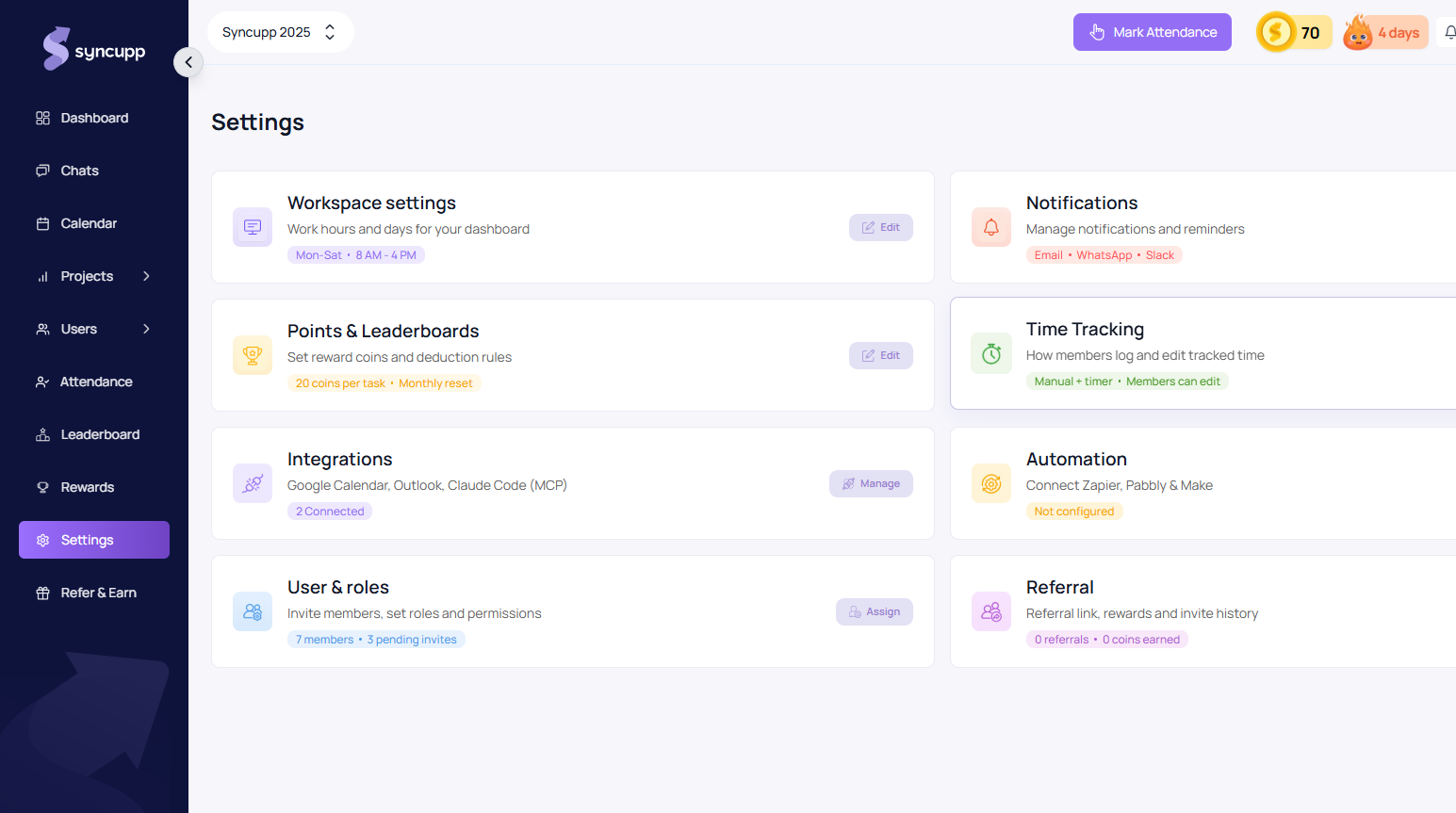
- Go to Sidebar → Settings → User & roles (app.syncupp.com/syncupp-2025/settings (opens in a new tab)).
- Click Change Plan or Add Seats.
- Choose your desired seat count.
- Your subscription mandate automatically syncs with our payment partners:
- Indian Users (INR): Processed seamlessly via Razorpay recurring mandates.
- International Users (USD): Processed via Dodo Payments subscription updates.
Troubleshooting Seat Count & Pending Invites
If you receive a notification stating your seat limit is reached:
- Check Users → Team and sort by Status.
- Look for any unconfirmed
Pendinginvites that may be reserving unused slots. - If an invited teammate never joined or entered the wrong email, delete or revoke their pending invite to immediately free up their seat.