Slack AI & Notifications
Connect a Slack workspace to receive Syncupp alerts, and, if you choose the full assistant, create and update work by messaging Syncupp in Slack.
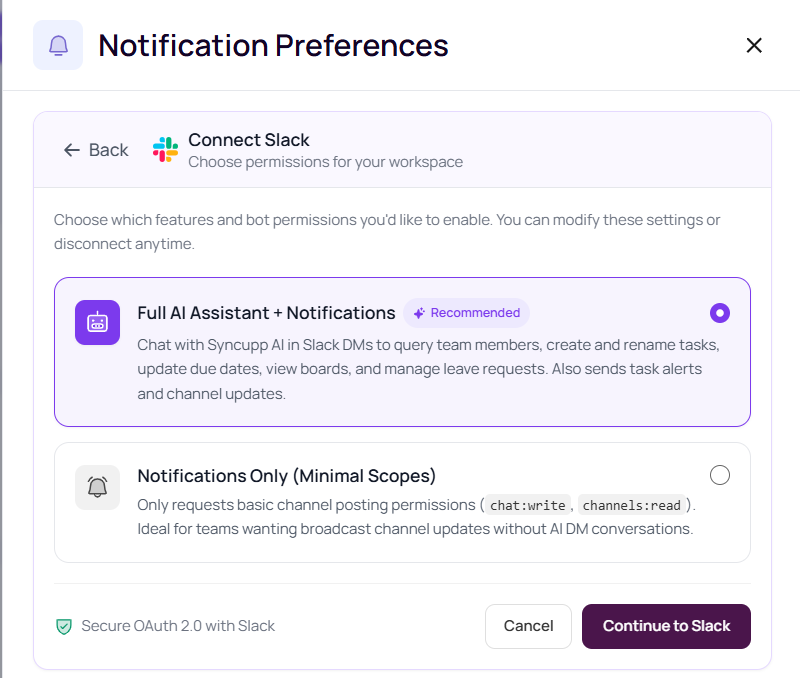
Connect Slack
- Open Sidebar → Settings → Notification Preferences (app.syncupp.com/your-workspace/settings (opens in a new tab)).
- Choose Connect Slack.
- Pick one mode, then Continue to Slack and approve the Slack prompt.
- Full AI Assistant + Notifications (recommended): Message Syncupp in a direct message to look up people, create and rename tasks, update due dates, view boards, and manage leave. Task alerts and channel updates are included.
- Notifications Only: Posts updates into a Slack channel. This mode does not add the AI conversation. It asks Slack only for
chat:writeandchannels:read.
- You can change the mode or disconnect later from the same screen.
Where alerts go
After the account is linked, personal alerts arrive as direct messages. A workspace admin can also pick a channel and tick which types should be posted there as well. Until a channel is selected, those types stay as direct messages.
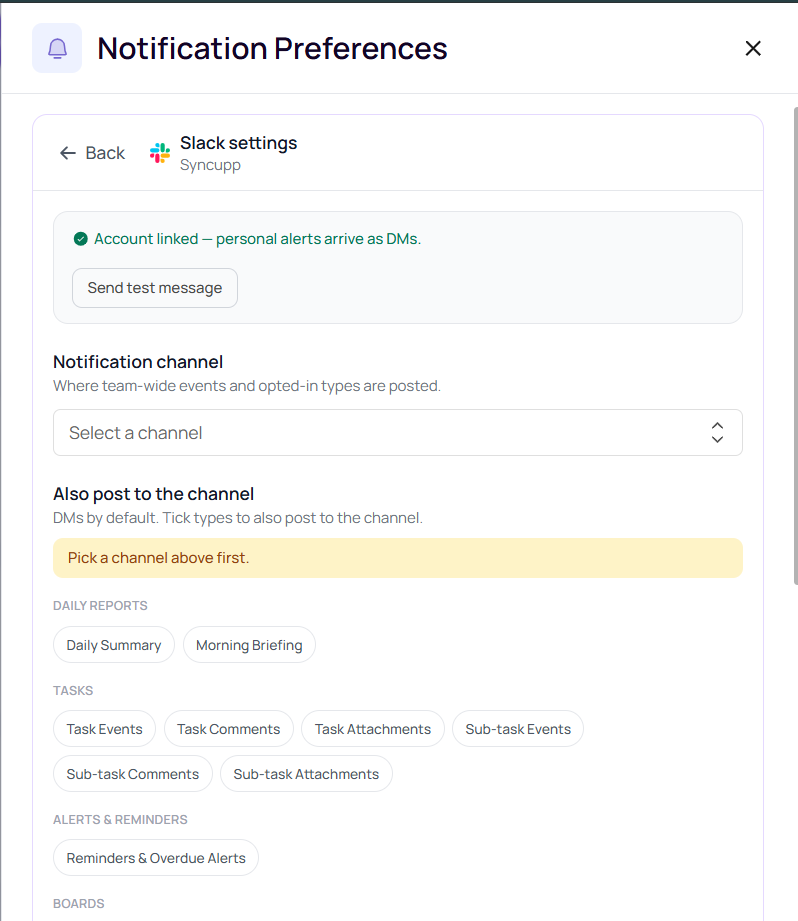
Channel types include daily summary and morning briefing, task and sub-task events, comments, and attachments, reminders and overdue alerts, and board updates. Use Send test message to confirm the link. Send morning briefing now sends a briefing without waiting for the morning schedule.
Do the work from a Slack direct message
With Full AI Assistant on, message the Syncupp app directly. The assistant follows your role, the same way the web app does.
- Tasks: Create a task (title and board are required), rename it, assign or remove someone, change the due date, mark it done, or delete it when your role allows.
- Look things up: Ask for tasks, boards, team members, or a workspace summary.
- Leave: Apply for leave in a direct message. Approving or rejecting leave is only available in that direct message, not in a public or group channel.
- People: Invite a teammate when your role allows, after name, email, phone, and role are known.
If a task already has a due date, the assistant asks why before changing it. You can also do this from WhatsApp. See WhatsApp Notifications & Alerts.